The AMT Lab podcast has been providing full transcriptions of shows for our readers and listeners for almost a decade. Committing to transcription is essential. And the good news is, it is getting easier. As a young researcher, I had to manually transcribe interviews, so transcribing a podcast seemed like “one more tedious task.” In the 2010s, AI translating and transcribing tools came onto the scene, with a product often used for dictation, Dragon, leading the confidence scale. Of course, you had to play your podcast into your phone or computer for the program to listen to as though it were a dictation session. It was still much easier than transcribing by hand. 2019 things changed. That was the year I discovered Otter.ai during a conference, and I watched it do live transcription of panels and talks. I was an instant fan and adopted it into our workflow. It was not the only tool, but it was far better than any of the others on the market at the time, with high confidence (in the 90+%) and near real-time transcription. I was such a fan, I incorporated it into in-person and video meetings, class recordings, and kept the app on my phone. For podcasting, it was a multi-step process that required uploading the audio file and then editing the transcription on a browser, but at the time, it was worth it.
In 2019, Descript was in its early stages. It entered the marketplace full-speed in 2021 and blossomed with the growth of AI. Of course, it isn’t the only new product available. The marketplace has exploded with tools for podcasting and voice transcription and manipulation. It is, however, one that has proven for us to be a one-stop tool for podcast editing and transcription. Are the transcriptions perfect? No. But process simplicity has its benefits. Both, however, are of value and remain in our techstack (one paid and one at the free tier), and here’s why.
Otter.ai
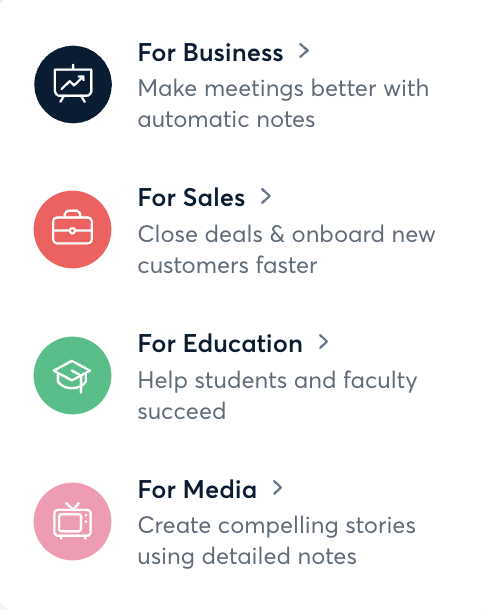
Otter.ai positions itself as “The #1 AI Meeting Agent.” It situates its best solutions in 4 categories: Business, Sales, Education and Media.
Here in AMT Lab, we have used it as a business in our meetings and as a tool in our podcast flow, but I also use it as a faculty member to support students who have been unable to attend a class for a particular reason.
You can record on the computer, on the mobile app, or upload an audio file from another source. You can create folder’s of similar content types if you have multiple projects. Each file is a ‘conversation.’ If you prefer to contain conversations about meetings with the meetings, you can have a #general conversation with the company or have direct conversations with individuals. We use the comment function in Asana to accomplish this or our podcast Slack channel. In addition to areas to communicate with team mates and organize content, Otter provides you with an AI Agent to query your conversations. The sidebar on a browser looks like this:
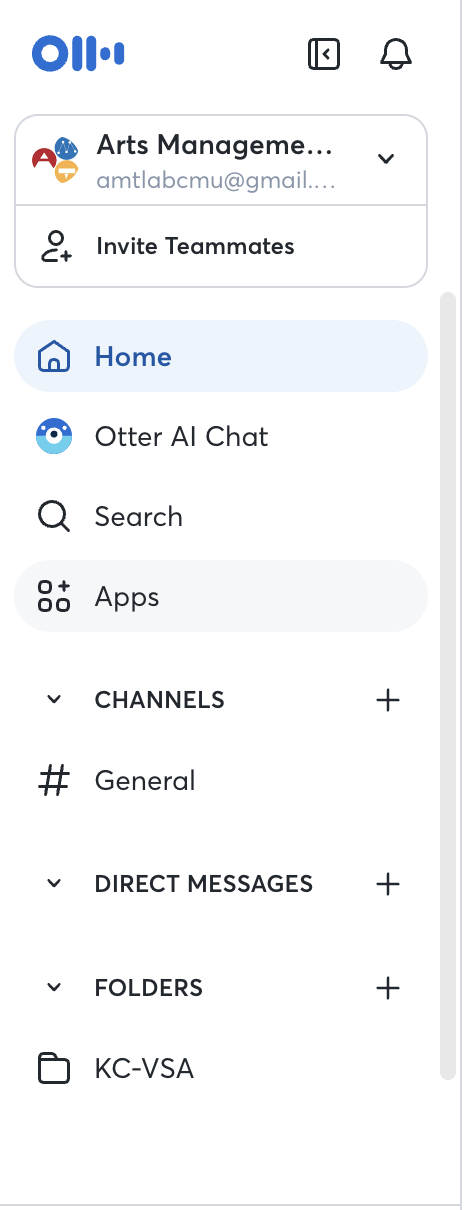
Image 2. Screenshot of AMT Lab’s Navigation Menu
On the right side of the website, you have other options. The camera icon let’s you insert a link to record a meetings, the import button allows you to the web a wide breath of formats: AAC, MP3, M4A, WAV, WMA, MOV, MPEG, MP4, and WMV. Or you can record on your computer directly.

Image 3. Icons showing the ways to move content into the transcription phase
You can also sync your Google, Outlook, or Zoom calendars so that they have the option to connect that meeting information to the Otter conversation recording.
Once the content is recorded and processed, you are provided with two content review options: Summary and Transcript. The summary structure is based on a Workplace Template. The Template options are: Genera., Team Meeting, Team Stand Up, 1-1, Candidate Interview, Sales - BANT, Sales Discovery, and User Research Interview. The summaries all have an Overview section. This overview section works well as a starting place for podcast summaries on a website or podcast player. It, however, still needs your brand voice and unique aspects of the podcast added to the write up. For meetings, however, it is particularly useful as it curates Action Items and the summaries the conversation into topic areas chronologically. The sections change depending on the template. For example, the Action Items section is replaced with Insights for the User Research Interview template.
The transcript view allows you to listen to the meeting, starting where your cursor is placed, and edit the conversation. The name of each speaker can be inserted if it is not already pulled in through the meta data. The AI is not always good at separating speakers in faster conversations or with similar voices, but that can be done manually when reviewing the transcript. Regardless of the tool, the transcript must be listened too and cleaned. AI is predictive, and much like dictation or spelling auto correct on our phones, it can and does interpret incorrectly. .
While excellent for a basic transcript generation for a podcast, it is clear that the use value for Otter.AI has been developed broadly for other cases. Regardless, it can, at times, be what works depending on the sound quality of our files.
descript
Descript describes itself as an AI tool for making great video, podcasts, or clips. In recent months, it is increasingly positioning itself as a leader in video creation “Direct your AI co-editor to turn your vision into video, or do it yourself with intuitive editing tools. With Descript, making video is as easy as typing.” You can upload audio or video, create real-time recordings in the app, or, as noted, use generative AI to create for you.
Its AI functionality makes it a dream for podcasting or video creation. It live-edits audio or video via text editing. “Whether you record in Descript or drag in a recording, you’ll get an instant transcript. Then, edit your video by editing the text. It’s that simple.”
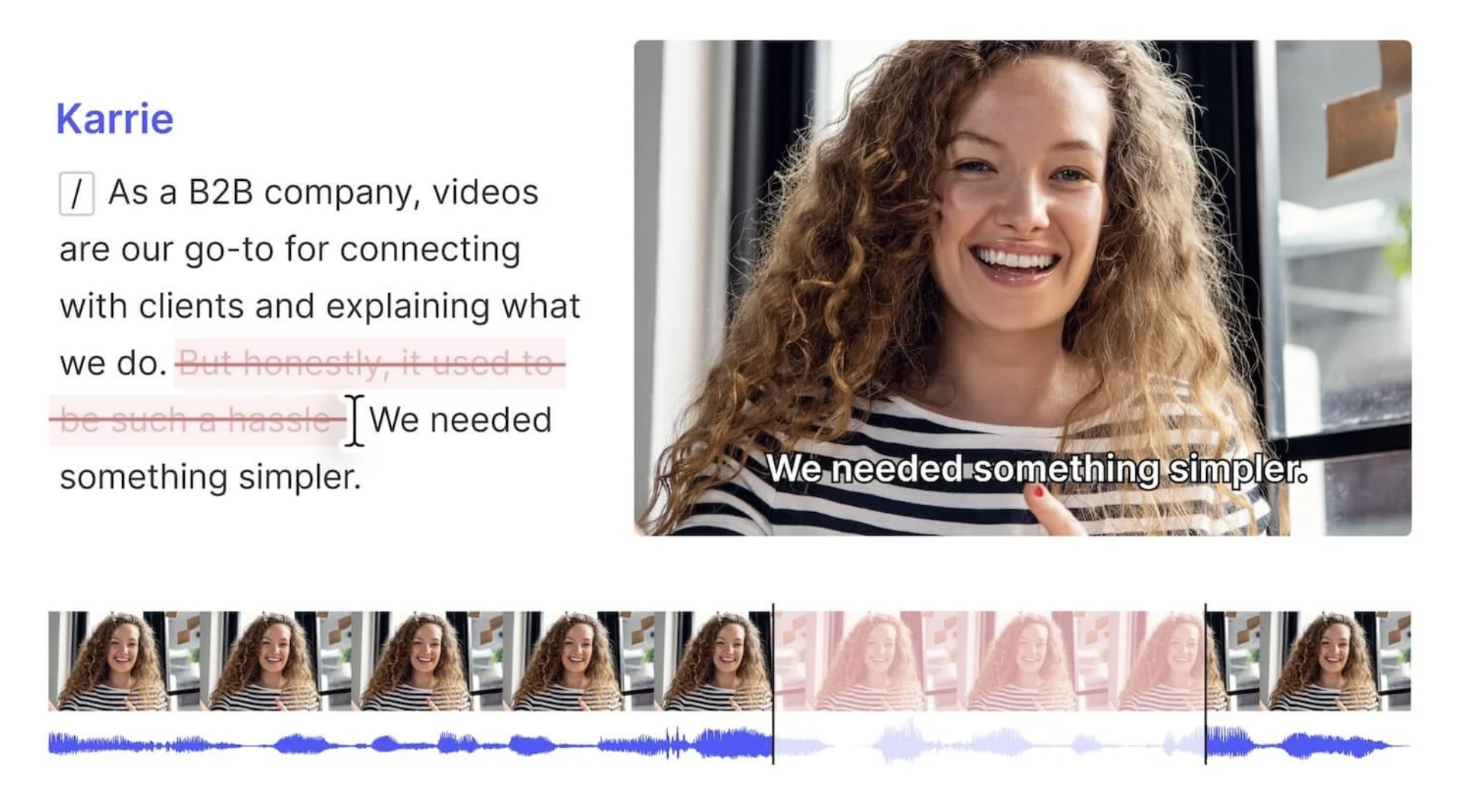
Figure 5. Descript website example of text-based editing for video
In Descript, you can use it with a team, as a solo content creator, or both. As you can see below, the navigation menu upon login allows you to add members to work on projects or on a Drive, or you can work in a private drive or project. It uses AI for creation, not just editing and transcription, so you can add AI speakers at the start from the same menu.
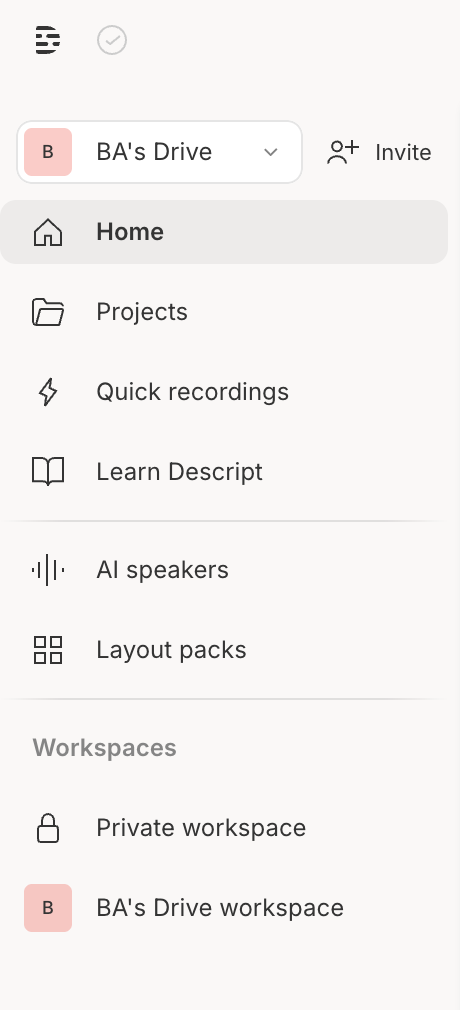
Figure 6. Descript navigation menu
Upon login you are prompted with a dashboard of options, provided below. At the top right, you can do a live recording or you can start a new project. If you want to schedule a video recording online, they take you to Squadcast their partner platform for conference recordings. The options are thorough: from editing a video, making a podcast, creating clips, and transcribing a file, to more AI-driven work of cleaning audio, adding captions, fixing eye contact, and translation for dubbing. They also give a second option for AI Speakers and include an AI video pathway as well.
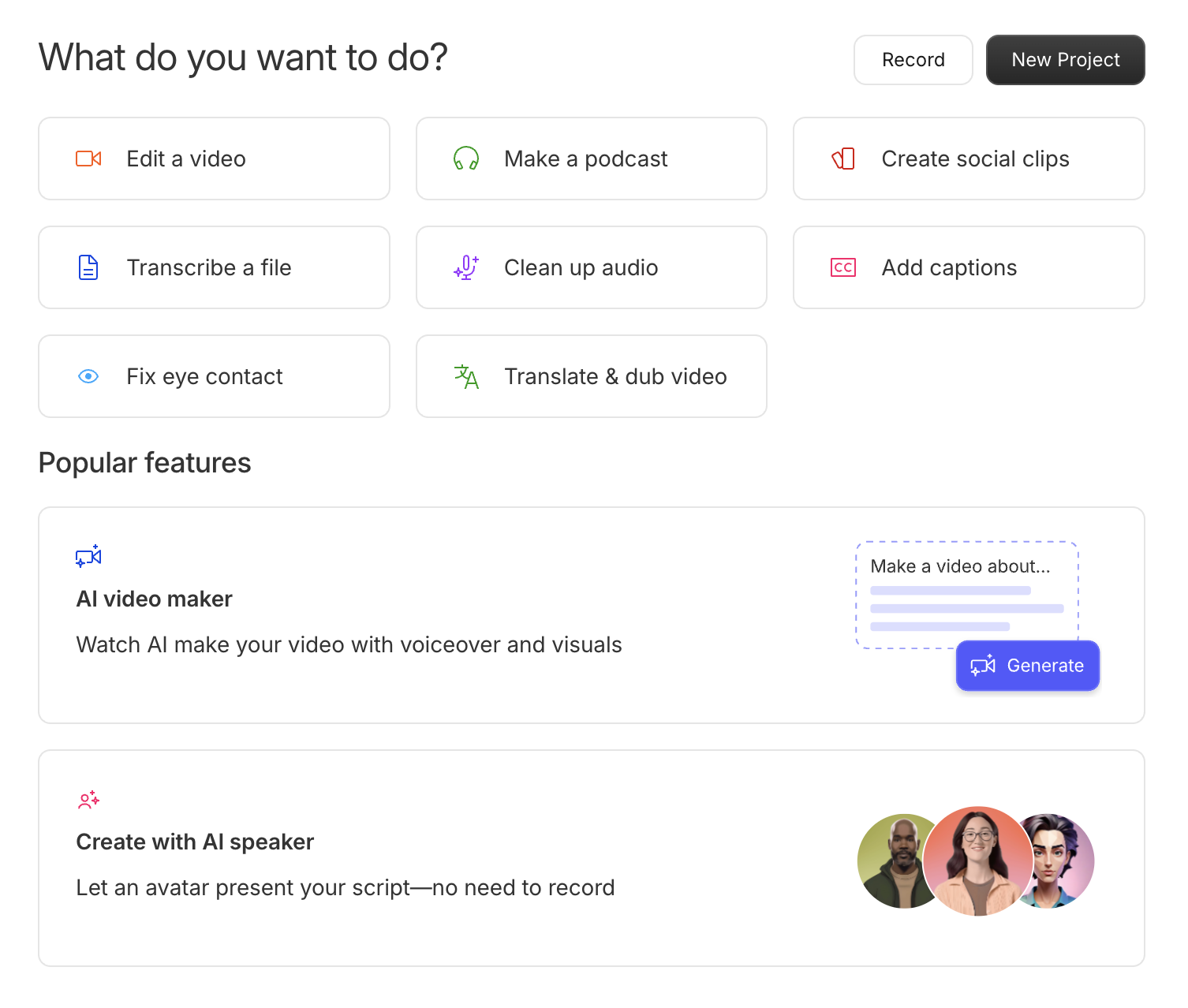
Figure 7. Dashboard for users upon login
The editing room is where the magic happens. The AI Underlord offers very targeted and useful AI actions to use. In addition, you can ask it to do other things as you would any generative AI tool. For podcasting, using the “remove filler words” command is the first thing I go to. You can also have it shorten gaps and even have it edit for clarity. Heavy hand-holding through the process is available and recommended. In basic text edit mode, what I truly appreciate is the ability to overwrite wrong words or statements, and Descript can use the existing voice to tweak a word. If you give it signed permission, it can use your voice in a text-to-speech creation process. Yes, there is a dark side to this type of technology we are all too familiar with. But for fixing a miss stated word, it makes editing simple. Screen shots of the various options are below:
conclusion
Both Descript and Otter.ai can be part of anyone’s podcasting process. They each have a unique value that engages AI in ways that make work easier. Descript is far more complicated if all you need or want is a transcript. However, if you want a more complete start to finish podcast recording and editing suite, it serves that well. It would not, however, be the tool of choice for meetings, marketing studies, etc. For me personally and for the AMT Lab team, having both in the tech stack has been valuable.
Of course, cost is a piece of the puzzle for any individual or company. This is how they compare
Both have monthly or yearly plans, with yearly offering steep discounts. The prices below are for the annual price plans. However, if you have a short-term project, you should opt for the monthly option.
Otter.ai
Basic
Free
AI meeting assistant records, transcribes and summarizes in real time
Basic AI Meeting Templates
Transcription and summaries in English, French, or Spanish
Otter AI Chat: Chat live with Otter and teammates, and get answers to meeting questions
Add teammates to your workspace
Joins Zoom, MS Teams, and Google Meet to automatically write and share notes
300 monthly transcription minutes; 30 minutes per conversation; Import and transcribe 3 audio or video files lifetime per user
Pro
$99.96 per user per year
Everything in Basic +
Advanced AI Meeting Templates
Enhanced team features: shared custom vocabulary; tag speakers, assign action items to teammates
Advanced search, export, and playback
1200 monthly transcription minutes; 90 minutes per conversation
Import and transcribe 10* audio or video files per month
Business
$240 per user per year
Everything in Pro +
Admin features: usage analytics, prioritized support
Joins up to 3 concurrent virtual meetings to automatically write and share notes
6000 monthly transcription minutes; 4 hours per conversation
Import and transcribe unlimited* audio or video files
Enterprise —
negotiate directly
Descript
Free
“Get Started”
Hobbyist
$192 per user per year
10 transcription hours/month
Export 1080p, watermark-free
20 uses/month of Basic AI Actions suite, including Filler word removal, Studio sound, Draft show notes, Create clips, and more
30 minutes/month of AI speech with stock AI speakers and custom voice clones
5 minutes/month of avatars
Creator
$288 per user per month (up to 3 users)
30 transcription hours/month
Export 4k, watermark-free
Unlimited Basic and Advanced AI Actions suite, including Eye contact, and 20+ more AI features
2 hours/month of AI speech
30 minutes/month of dubbing in 20+ languages
10 minutes/month of custom avatars
Unlimited access to royalty-free stock library
Business
$600 per person per month
40 transcription hours/month
Add free Basic seats for collaboration
Unlimited access to the full Professional AI Actions suite, including Translation proofread
5 hours/month of AI speech
2 hours/month of dubbing in 20+ languages
30 minutes/month of custom avatars
Priority support (with SLA)
These are only two of many, and we have dabbled with others but continue to return to what works in our tech flows. Find what works for you and lean in on finding tools to save you time.