
by Morris McLennan
Over the past few weeks, I’ve been diving into how nonprofits might be able to use local large language models (LLMs) to help with grant applications. Personally, I apply to around fifty grants per year as an independent artist, and I suspect that an LLM could increase productivity in that area of my life to open up more room to focus on other parts of the art-making process.
I imagine that in the nonprofit sector, someone working in a development department would love to spend less time on grants and more time on building relationships with donors, planning fundraisers, and checking tasks off their to-do list.
For that reason, I have created a quick-start guide for setting up a local large language model to assist with grant writing.
LLM Use Cases for Grants
Some of the common ways that nonprofits use LLMs to help write grants include:
Comparing your proposal to previous winning proposals (Godwin)
Drafting pages
Receiving feedback on your proposal
Drafting budgets
Cleaning data in the grants database
Double-checking that your application meets the requirements
Extracting data from documents (Schmitt)
Checking spelling, grammar, tone, and style (Seckel)
Why local AI?
Many people, including nonprofit employees and funders, are opposed to the construction of new data centers. A local LLM ensures that none of the data hosted locally on the computer gets into the hands of tech companies. While it is possible to pay for enterprise AI that would not train new models on sensitive internal data, many nonprofits might not want the extra expense.
A locally hosted large language model does not interact with data centers, share sensitive information with tech companies, or, in most cases, cost any money. Instead, a local LLM uses the RAM on a personal computer to run lightweight models that can interact directly with the files on the computer (MacGuire).
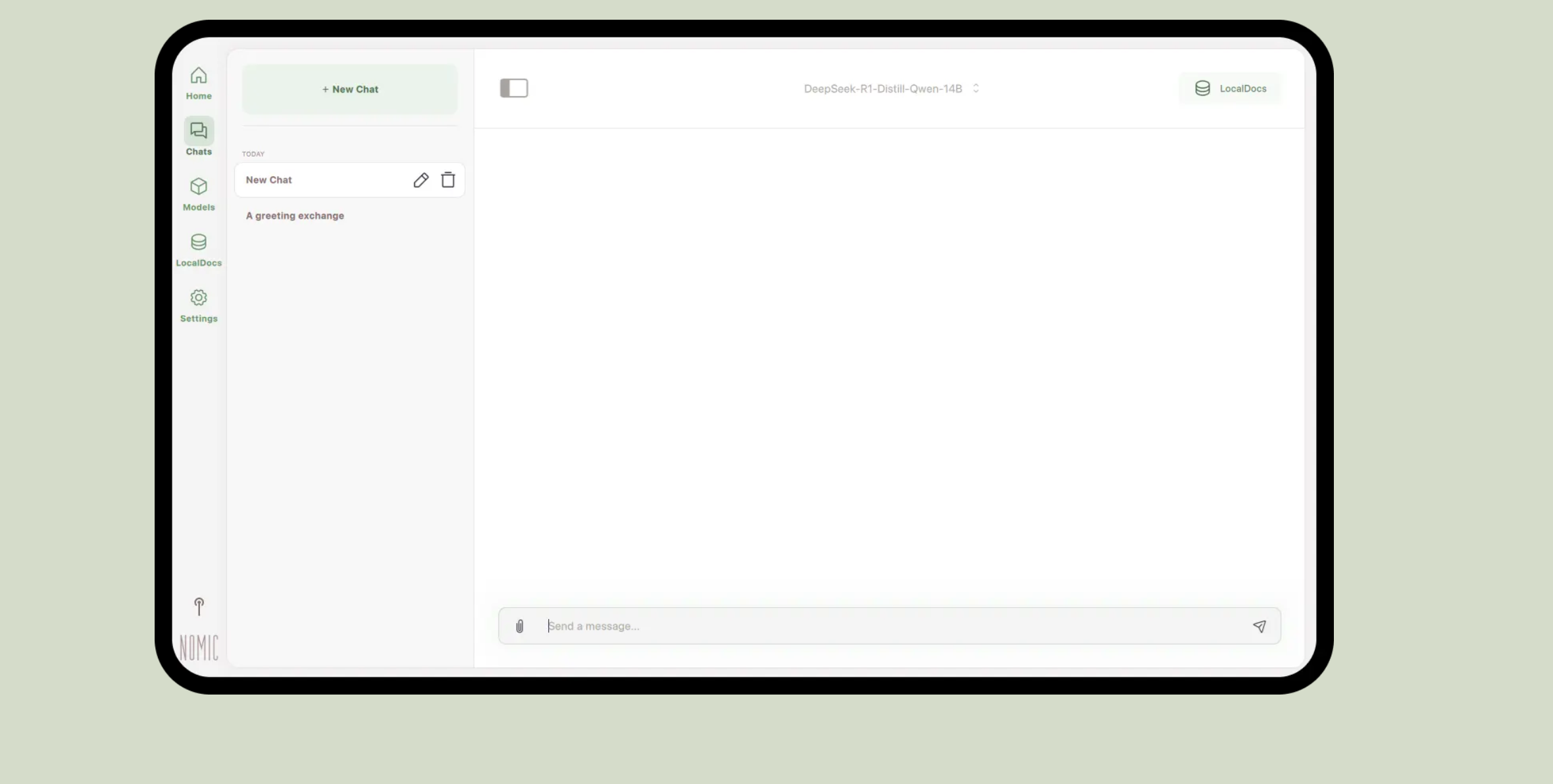
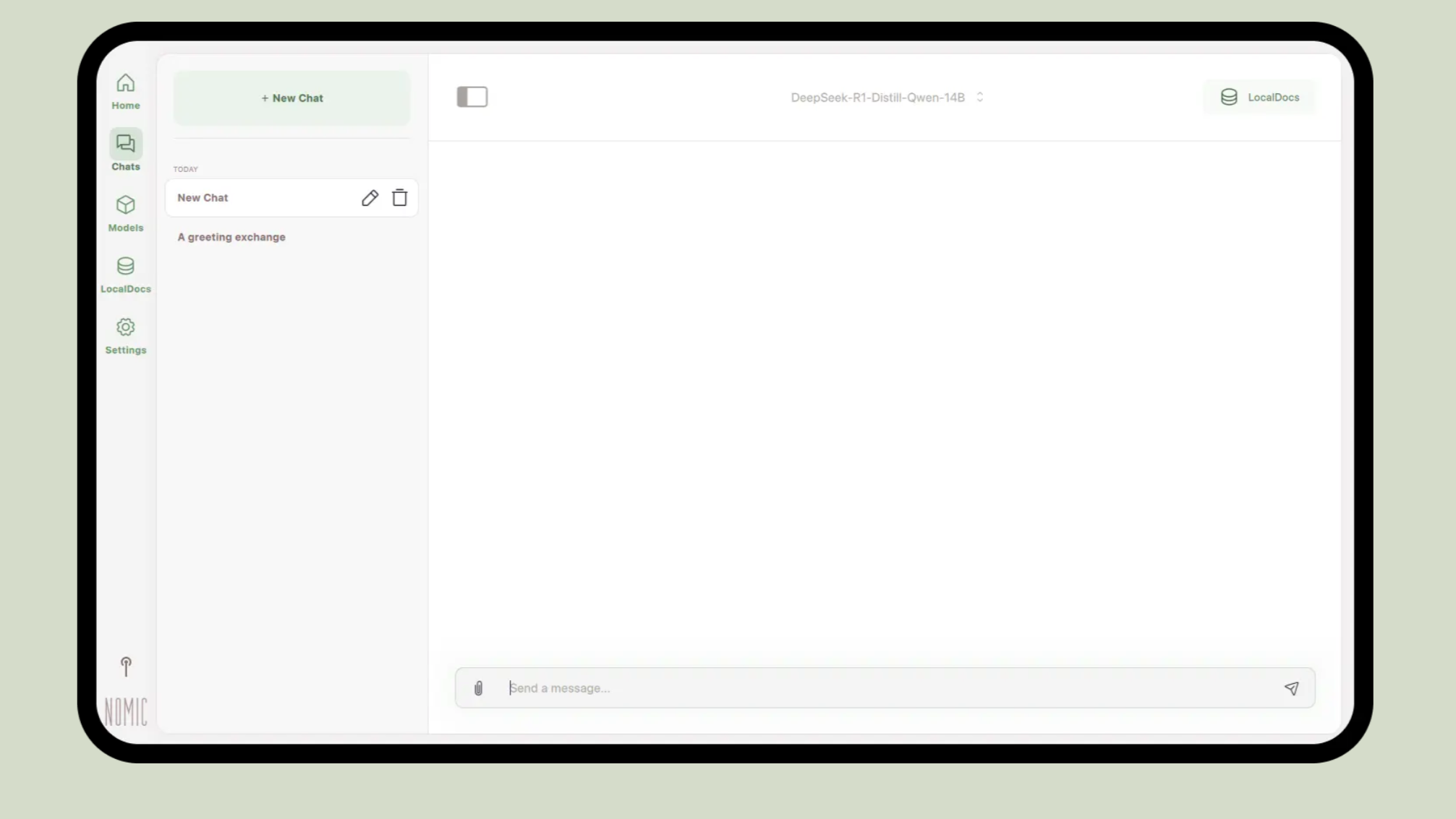
Screenshot of GPT4All Source: NOMIC.AI
Here are the steps to set up a successful local LLM for grant writing:
1. Install local LLM software
You can download any of the available local AI tools. Popular options include GPT4All, Ollama, and LM Studio (Corsair). I tried LM Studio and ended up uninstalling it in favor of GPT4All. For some reason, LM Studio caused my laptop to run a bit slow, while GPT4All functioned perfectly on my five-year old Acer laptop. It may take some experimenting to figure out which software works for you.
One way to test how your computer is handling the software and model is to open up the “Task Manager” on your computer. Then, you can see which software uses the most memory. Or just try listening to a podcast and asking the LLM to do something at the same time and see if your laptop crashes (mine did when I tried a too-big model).
2. Choose a model that works with your computer
Some local LLM software will tell you which models are small enough to run on your computer. For example, in the home page of GPT4All, if you click “Find Models,” it will show you a list of available models and if they are likely to run well on your computer. My laptop has 8G of RAM, which meant I could try out a few different models. If you have more or less RAM, that is going to affect your options. You can also check which models work with your computer at Run This LLM.
But which model is best for grant writing? Some models are designed more for code, some are more for answering questions, and some are better for writing. Generally, one of the Llama models that works on your computer should be a good choice (Local).
3. Connect to your local files
If you’re using AI to write grants, the AI needs to know about you. Since I’m an individual and not a nonprofit, I created a folder to share with my LLM that contained my bio, resume, artistic statement, and past proposals. For a nonprofit, you can create a folder that includes your mission, values, vision, budget, structure, and legal documents.
Navigate to the settings in whichever software you are using. If you’re in GPT4All, click “LocalDocs,” then click “Add Collection” at the top right corner. Then, click on whichever folder you want the AI to be able to work with.
Now, you can chat with A.I. while referencing your specific and relevant information.
4. Write your system message
The last step to setting up your local LLM is to write your system message. A system message is an instruction that tells the model how to behave (Microsoft).
Click on “Settings,” then “Models,” then scroll down to “System Message.”
Here, you can get creative based on your needs as a grant writer. If you want your local LLM to help you generate first drafts, you can type something like: “You are a grant writer. All of your responses are accurate, professional, and fit the standards of [insert sector here].”
If you are looking for feedback, advice, or A / B testing, you can type something like: “You are a member of a grant review committee in [insert sector here.] You share feedback based on industry standards and examples of previous success.”
If you are unhappy with the way your LLM is answering your queries, you can always go back and adjust your system message.
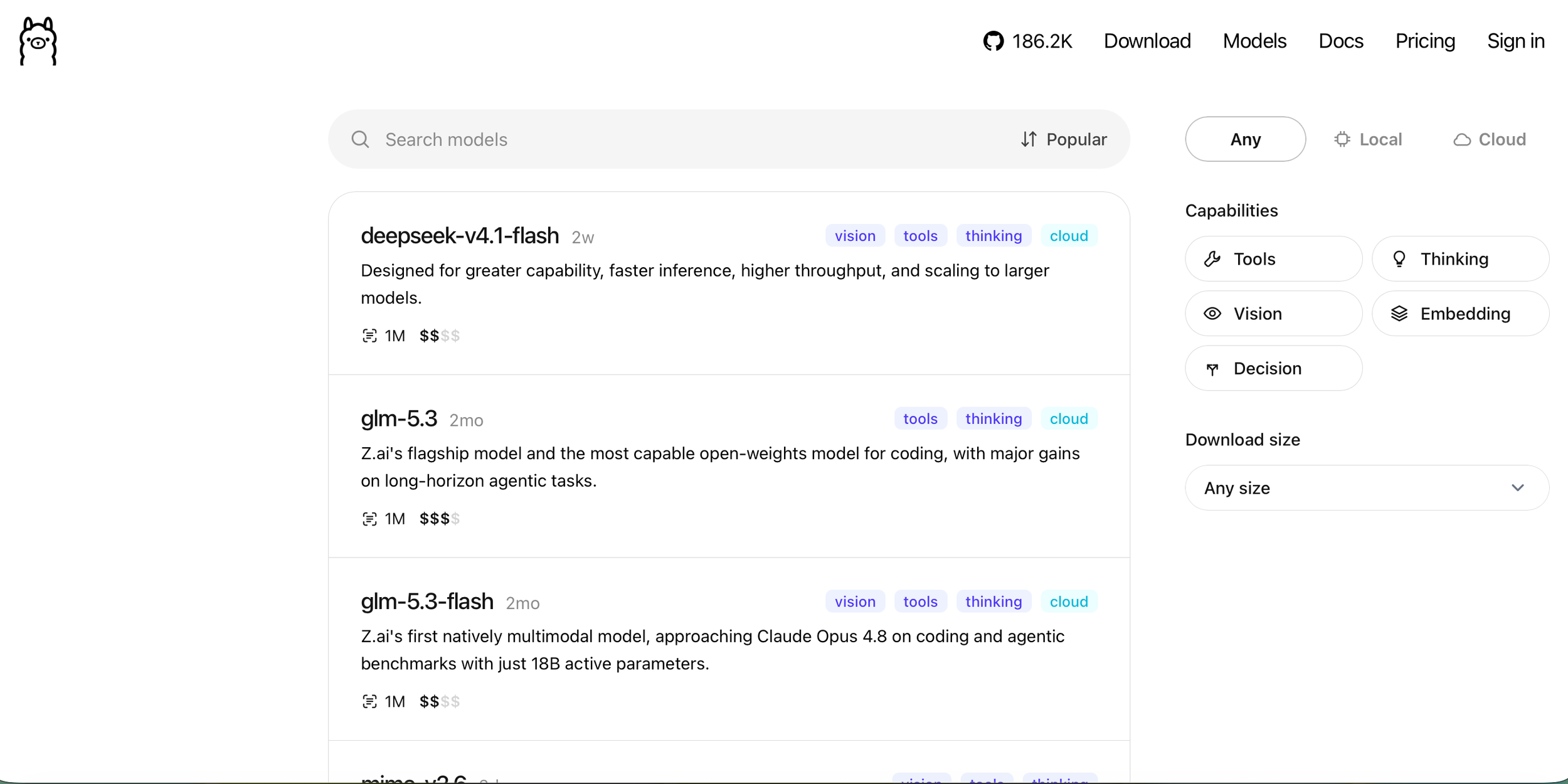
Screenshot of model catalog from Ollama. Source: Ollama.com
To get consistently relevant output, here are a few tips:
Request generative work in chunks, not all at once
Since you’re using a tool that is a bit smaller and simpler than web-based LLMs, it might have a hard time popping out thousands of words at once. If, for example, you write one paragraph and ask the LLM to write the following paragraph, it is more likely to mirror your tone and style than if you were to ask it to just write both at once.
Claude might be ready to generate an entire proposal in one go, but the local models generally are not there yet. With the pace that this technology is advancing, they might be soon!
Ask your LLM for feedback
While plenty of people have success drafting entire proposals with LLMs, some sources indicate that it might be better practice to use AI for feedback and revision rather than taking on the entire workload of a grant writer (Seckel).
The key thing to ensure is that your final application reflects your genuine voice and mission. To that end, you can either have your LLM write a first draft that you revise, or you can create a first draft and use the LLM as a feedback tool.
the future of granting writing with llms
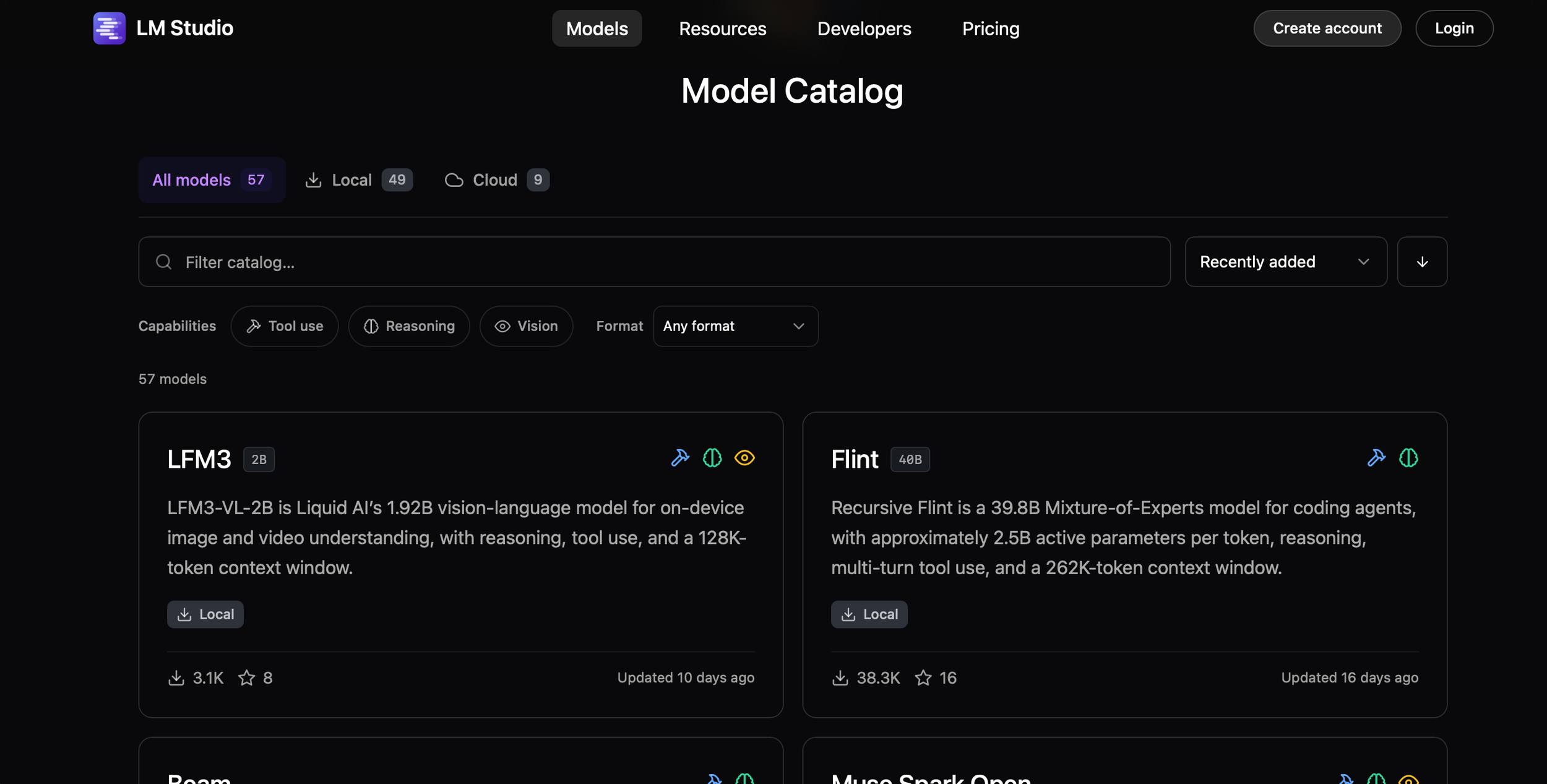
Screenshot of model catalog from LM Studio Source: LM Studio AI
Now you know how to run a large language model on your computer to help with grants! But this guide is not the sum total of everything you need when considering AI If you are working for a nonprofit, it is probably worthwhile to collaborate with your entire team to create an AI usage policy so that everyone is on the same page.
For those of us with concerns about the LLMs coming out of big tech, we can still use new technologies to serve our work.
“So much of the coverage around LLMs focuses on raising the ceiling: the improved capabilities of the largest models. But beneath this noise the floor is being raised.””
Perhaps in another year or two, the kinds of things people accomplish with large high-energy models will be possible on a local laptop.
Perhaps in another year or two, we’ll all have piles of grant money and zero worries.
-
Allen, Troy. 2025. “EnviroLLM: Resource Tracking and Optimization for Local AI.” 2512.12004V1. December 12. arXiv (2512.12004v1). https://arxiv.org/abs/2512.12004v1.
Arxiv.Org. 2020. “Holistically Evaluating the Environmental Impact of Creating Language Models.” https://arxiv.org/html/2503.05804v1.
Breunig, Drew. 2025. “A Gentle Intro to Running a Local LLM.” Drew Breunig, February 4. https://www.dbreunig.com/2025/02/04/a-gentle-intro-to-running-a-local-llm.html.
Corsair Gaming. 2026. “How to Run a Local LLM on Windows (No Cloud Required).” Corsair, March 27. https://www.corsair.com/us/en/explorer/diy-builder/how-tos/how-to-run-a-local-llm-on-windows-no-cloud-required/.
Das, Vishnu. 2025. “Exploring GPT4All, the Local LLM Desktop App – Open Source for You.” Open Source For You, June 10. https://www.opensourceforu.com/2025/06/exploring-gpt4all-the-local-llm-desktop-app/.
GIPHY. 2016. “With Great Power Comes Great Responsibility GIF.” Giphy, June 30. https://giphy.com/gifs/MCZ39lz83o5lC.
GIPHY. n.d. “Cat Reaction GIF – Find & Share on GIPHY.” Giphy.Com. Accessed October 4, 2026. https://giphy.com/gifs/JIX9t2j0ZTN9S.
Github.Io. 2024. “System Message | Learn How to Interact With OpenAI Models.” https://microsoft.github.io/Workshop-Interact-with-OpenAI-models/Part-2-labs/System-Message/.
Godwin, Ryan C., Jennifer J. DeBerry, Brant M. Wagener, Dan E. Berkowitz, and Ryan L. Melvin. 2024. “Grant Drafting Support With Guided Generative AI Software.” SoftwareX 27 (September): 101784. https://doi.org/10.1016/j.softx.2024.101784.
LLM Configurator. 2026. “System Prompts 101: Get Better Answers From Your Local LLM.” Llmconfigurator.Com, July 12. https://llmconfigurator.com/en/guides/system-prompts-local-llm.
LocalAimaster Research Team. 2026. “Best Local AI Models for Writing in 2026: Tested & Ranked.” Local AI Master, LocalAimaster, June 10. https://localaimaster.com/blog/local-ai-writing-models.
McGuire, Mark. 2025. “Installing GPT4ALL and Why You Should.” Medium, July 16. https://medium.com/@-mark-mcguire-/installing-gpt4all-and-why-you-should-b7276a37716f.
Patrick Schmitt Co-CEO, FreeWill. 2022. “Grant Assistant.” Grantassistant.Ai. https://www.grantassistant.ai/resources/articles/ai-grant-writing.
Seckel, Elizabeth, Brandi Y. Stephens, and Fatima Rodriguez. 2024. “Ten Simple Rules to Leverage Large Language Models for Getting Grants.” GitHub, March 10. https://github.com/eseckel/ai-for-grant-writing/.
Smith, Kaytlyn. 2024. “How to Use AI to Apply for Grants.” Uschamber.Com, CO- by U.S. Chamber of Commerce, August 8. https://www.uschamber.com/co/run/technology/ai-tools-for-grants.
Stratechery by Ben Thompson. 2017. “Aggregation Theory.” September 20. https://stratechery.com/aggregation-theory/.
Tang, Ningjing, Megan Li, Amy Winecoff, Michael Madaio, Heidari Hoda, and Hong Shen. 2025. “Navigating Uncertainties: How GenAI Developers Document Their Models on Open-Source Platforms.” 2503.23574V2. March 30. arXiv (2503.23574v2). https://doi.org/10.1145/3772318.3790910.
Unise, Thomas. n.d. “Run This LLM.” Run This LLM. Accessed September 20, 2026. https://runthisllm.com.
Writing, Learn Grant. 2026. “AI for Grant Writing: Your Burning Questions Answered.” Learn Writing Grants and Grant Funding. https://www.learngrantwriting.org/blog/ai-for-grant-writing/.tion text goes here